Installation Guide
Bergwerk Components
To fully understand the functionality of the Bergwerk application, it's essential to familiarize yourself with its core components:
- wiki: This is where the content for the chatbot is stored. It includes a structured menu and training questions for the intent classifier.
- api: This component allows access to the Wiki and provides import/export functionality for chatbot content, facilitating data migration.
- api: This adapter enables communication with the Rasa Webchat Plugin, which resides at the root of the web server.
- Bergwerk-cron: Responsible for automatically creating wiki pages from conversations stored in the MySQL Tracker database. These pages are saved on the wiki tracker.
- Database (db): A MySQL database that stores the MediaWiki conversation tracker, among other related data.
- Caddy: Used as a reverse HTTP(S) proxy that serves both the Wiki and the API.
Important Files and Configuration Settings
./config.env
The config.env file is crucial for setting up usernames and passwords for various services, such as:
- MediaWiki admin and bot accounts
- MySQL credentials
IMPORTANT: Use a mix of uppercase, lowercase, numbers, and special characters, at least 12 characters long. Shorter, insecure passwords may result in failed installations. Please make sure to keep these passwords secret due to the fact that it can be used to alter the contents of your chatbot.
Additionally, you need to specify the protocol (http or https) and the hostname of your server. Bergwerk can use Let’s Encrypt to provision your server with valid SSL certificates. To enable this:
Set the SERVER environment variable to https and include your hostname. Example: SERVER=https://chatbot.example.com.
If you changed the server hostname from localhost to something else, ensure you also update it in caddy/html/index.html if you want to test your chatbot.
For secure communication with the MySQL component, Bergwerk automatically creates a self-signed TLS certificate. This allows secure remote access to the MySQL server. Currently, it is not possible to use a certificate from a trusted certificate authority.
./config.yaml
The config.yaml file is used to configure various chatbot settings. Below is an example configuration:
error_message: Oops! Something went wrong. Ups! Hier funktioniert etwas nicht!

initial_greeting: Um den Chatbot nutzen zu können, müssen Sie bitte unserer Datenschutzerklärung zustimmen. \n\n To proceed, please agree to our chatbot's privacy policy.

keep_conversation_days: 180

languages:
    English:
        agree_button: Agree - English
        agree_payload: /Agree

    Deutsch:
        agree_button: Zustimmen - Deutsch
        agree_payload: /Zustimmen
This file allows you to customize error messages, initial greetings, conversation retention periods, and multilingual support for user interactions. The example file comes with support for English and German language, you can add or remove languages as you like.
Start All Containers and Access Services
After making your adjustments, it's time to start the chatbot by running the following command:
docker compose up
Wait for the services to start up, and then you can access the interactive example chatbot via http://localhost. This should look similar to these messages:
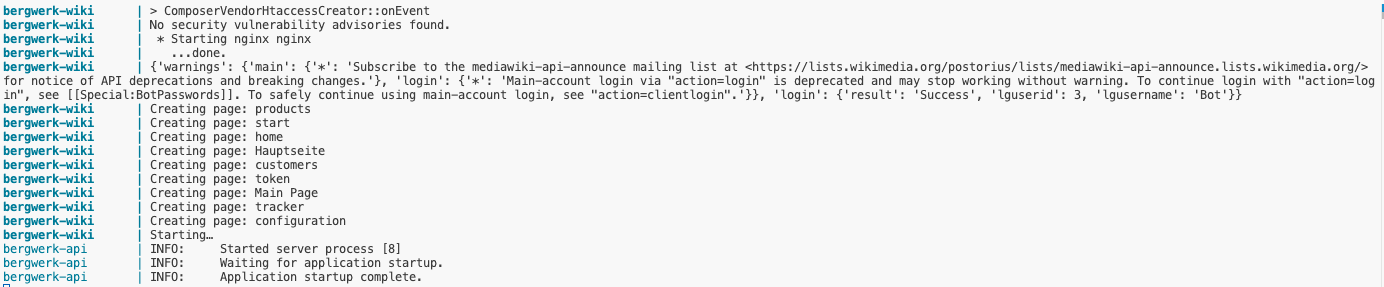
The Wiki for managing chatbot content can be accessed at http://localhost/wiki.
Admin panel
You can use then admin panel ('http://localhost/admin) to easily do the following:
- Import existing assistant
- Export assistant content
- Build intent classifier
Use the MEDIAWIKI_ADMIN and MEDIAWIKI_ADMIN_PASSWORD as your credentials.
Building an Intent Classifier
After you filled your chatbot wiki pages with content and training questions, you might want to train your intent classifier. This makes escpecially sense if you want your users to use the text input field instead of the menu buttons. To build the intent classifier, use the 'build intent classifier' function in the admin panel. You can also use Bergwerk's demo content to build an intent classifier. Please note that depending on your hardware, builing an intent classifier can take quite a long time. Training the intent classifier can be resource-intensive and time-consuming, depending on the amount of content and the hardware available. For instance, if your chatbot consists of approximately 100 pages, each containing about 20 to 30 training questions, the training process may take up to two hours to complete on a 10-core M1 Pro Processor. You need at least 16 GB of RAM to train an intent classifier.
Backing up the Intent Classifier (and Reusing it)
You can make a backup of the intent classifier by invoking docker cp for now. In your bergwerk directory,
docker cp api:/intent_classifier api/data/ This will copy the intent classifier to the "data" directory of the Bergwerk API.
Any intent classfier located in the "data" directory of the Bergwerk API will be automatically installed when you start your Bergwerk app via docker compose up.